How to Use the Research Cores
Contacts and Resources
Need to access an FAU Core facility?
Contact the core manager here:
- Biostatistics Collaborative Core
- Advanced Cell Imaging Core
- Clinical Research Unit
- Comparative Medicine
- Engineering and Technology Core
- MRI & Human Imaging
- Neurobehavior Core
- Water Analysis Lab
Research Core Management Resources
Stratocore Pasteur Platform Management System (PPMS), FAU’s research core management software runs:
- Scheduling and Ordering
- Invoicing
- Usage Tracking
- Project Management
- Incident and Maintenance Reporting
FAU Research Cores Internal Pilot (RCIP) Program
- Announcement / Guidelines
- List of Awardees
For FAU Scientific and Clinical Researchers:
Invoicing for Core Projects
Invoice approval in the Stratocore PPMS system:
Researchers and designated administrators (if applicable) will receive an invoice via email. Next steps:
- Go to the Start Page at https://ppms.us/fau/start/
- Click the relevant core facility.
- Log in with FAU credentials.
- To accept the invoice, select the following: Group Management (on the blue task bar) > Invoice Draft > Accept This Draft Invoice.
Approving Invoices Using Workday:
If using the cloud-based system Workday, an “internal service delivery” will come to in your Workday inbox:
- Review all information, including TAGs and attachments.
- Select “Approve” if the invoice is approved.
- If not approved, contact researchcores@fau.edu if an issue exists.
NOTE: The Workday approval process can be delegated to another approver.
To delegate the task in Workday, click here for details.
Budgets for Grant Proposals:
Answering budget questions for grant proposals
- For “Direct Costs,” write the quoted dollar amount from the core manager.
- To justify your budget, list items such as equipment, services and rates as “Other Direct Costs.”
- Research core rates include direct costs only. Submit any facilities and administrative costs in the indirect costs section of the grant proposal.
- For the Novelution screening question: “Does the project involve the use of a FAU Core Facility?” select each research core included in the budget.
Publishing
Guidelines for publishing academic papers
- Core facility personnel provide essential services for core users. Therefore, recognizing contributions to the scientific advancement of research projects is important.
- The kind of recognition, however, may differ from project to project and depend upon the personnel’s contribution.
- When is co-authorship warranted? Are there times when an acknowledgment is more appropriate? And what if a user or collaborator refuses to acknowledge core personnel?
- For answers to these and other core-related publishing questions, visit Authorship Guidelines to learn more.
For Non-FAU Scientific Researchers:
To access the Stratocore PPMS system:
- Go to the Start Page at ppms.us/fau/start
- Click the relevant core facility.
- Log in using your PPMS credentials.
Paying Invoices
By credit card or electronic check (ACH): Visit the Research Cores’ Store at the FAU Marketplace.
How to Establish a Research Core at FAU
A research core is a shared facility that gives investigators access to equipment, tools, technologies and services needed for scientific and clinical inquiries.
The Process
- Schedule a meeting with a representative from the FAU Research Cores Program ( ResearchCores@fau.edu ) to present the research core proposal and develop a strategy.
- Complete an application, business plan and rate calculation using the Research Cores Program templates.
- Get preliminary approval for your proposed core business plan and rates worksheet from the Research Cores Oversight Committee (RCOC).
- Obtain approval from the Vice President for Research.
- Acquire final authorization from the RCOC.
Establish Delegations – Internal Service Delivery Approvals
Use when you need to delegate a task
How to Access Delegations
Note: All Asterisks (*) need to be completed.
Your screens and processes may vary from those described here.
Access the My Delegations task

1. The My Delegations page will display:
- Under the Current Delegations tab, click Manage Delegations.

2. Under Manage Delegations, the Business Processes allowed for Delegation will display. This is where you will set up your delegate.
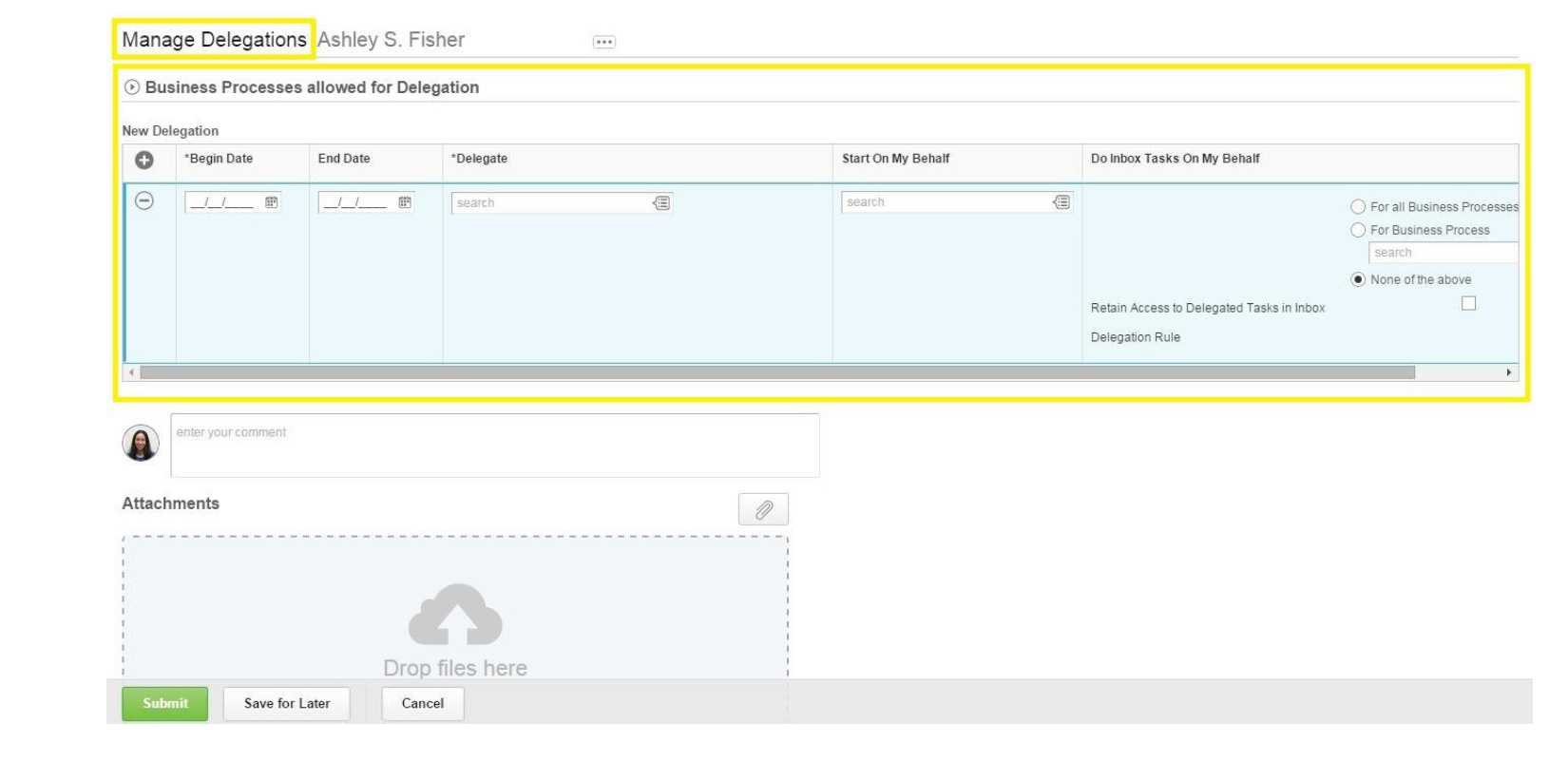
3. Under New Delegation:
- Under Begin Date, type or select the date you want the delegate's task to start. Use the calendar icon if needed.
- Under End Date, type or select the date you want the delegate's task to end. Use the calendar icon if needed.
- Under Delegate, type or select the name of the person you will be delegating the task to. This is the person who you will be delegating spend authorizations and expense reports to.
- In the search box, type the first name and last name of the person and press Enter.
- You can also use the Prompt to select a name from the drop down menu.
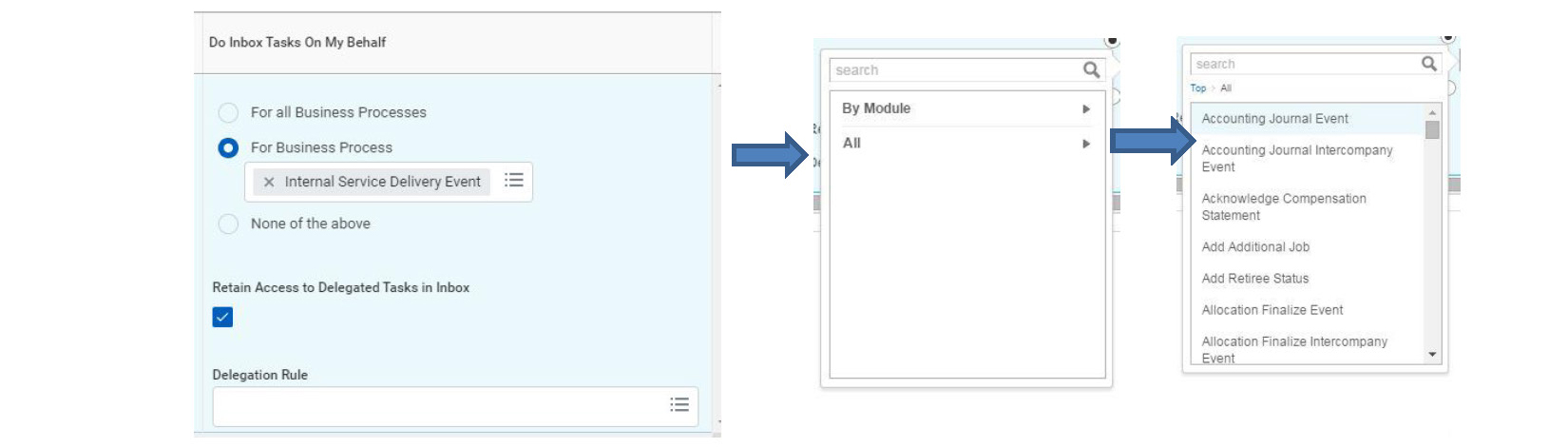
- Under Do Inbox Tasks On My Behalf:
- Select For Business Process.
- In the search box, type the task or use the Prompt to select the task.
- Type Internal Service Delivery Event and press Enter.
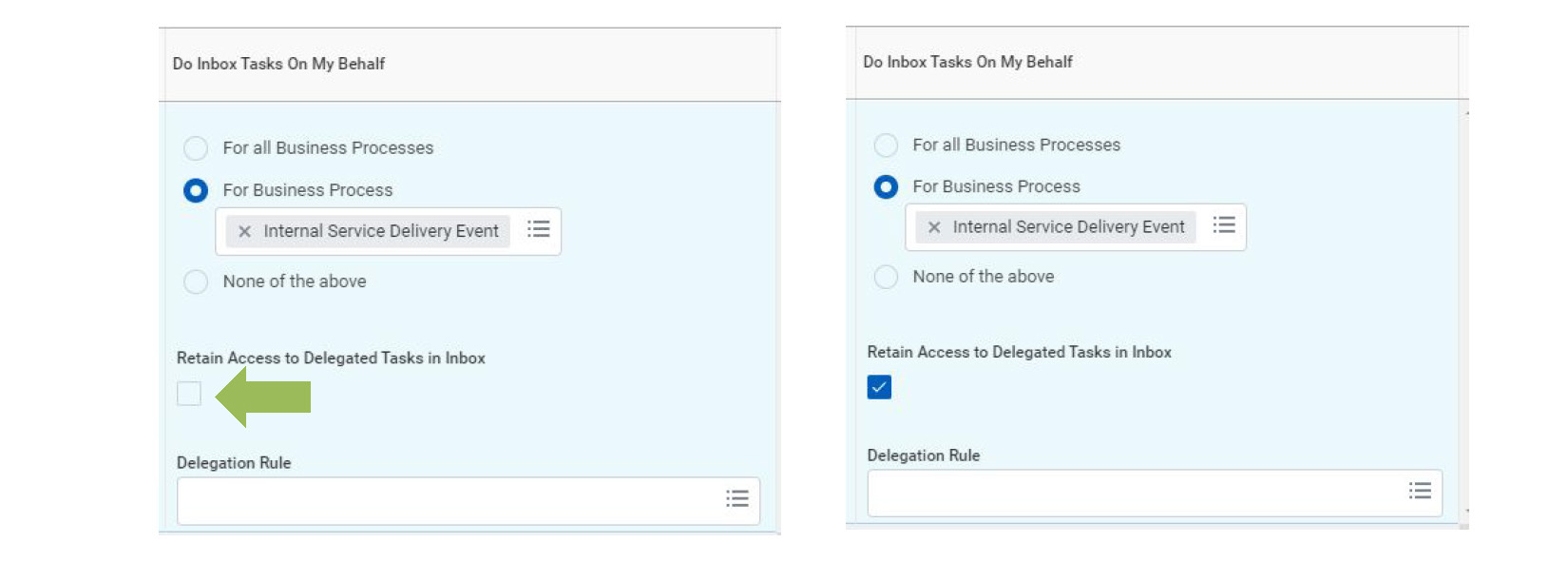
e. For Retain Access to Delegated Tasks in Inbox:
-
- If you do NOT want to see the tasks in your Inbox, but want them sent to the delegate for further action, do NOT click the box. Only the delegate will see the tasks as they come in.
- If you want tasks posted to both your inbox and the delegate's inbox for further action, click the box to place a checkmark. Both you and the delegate will see the tasks as they come in.
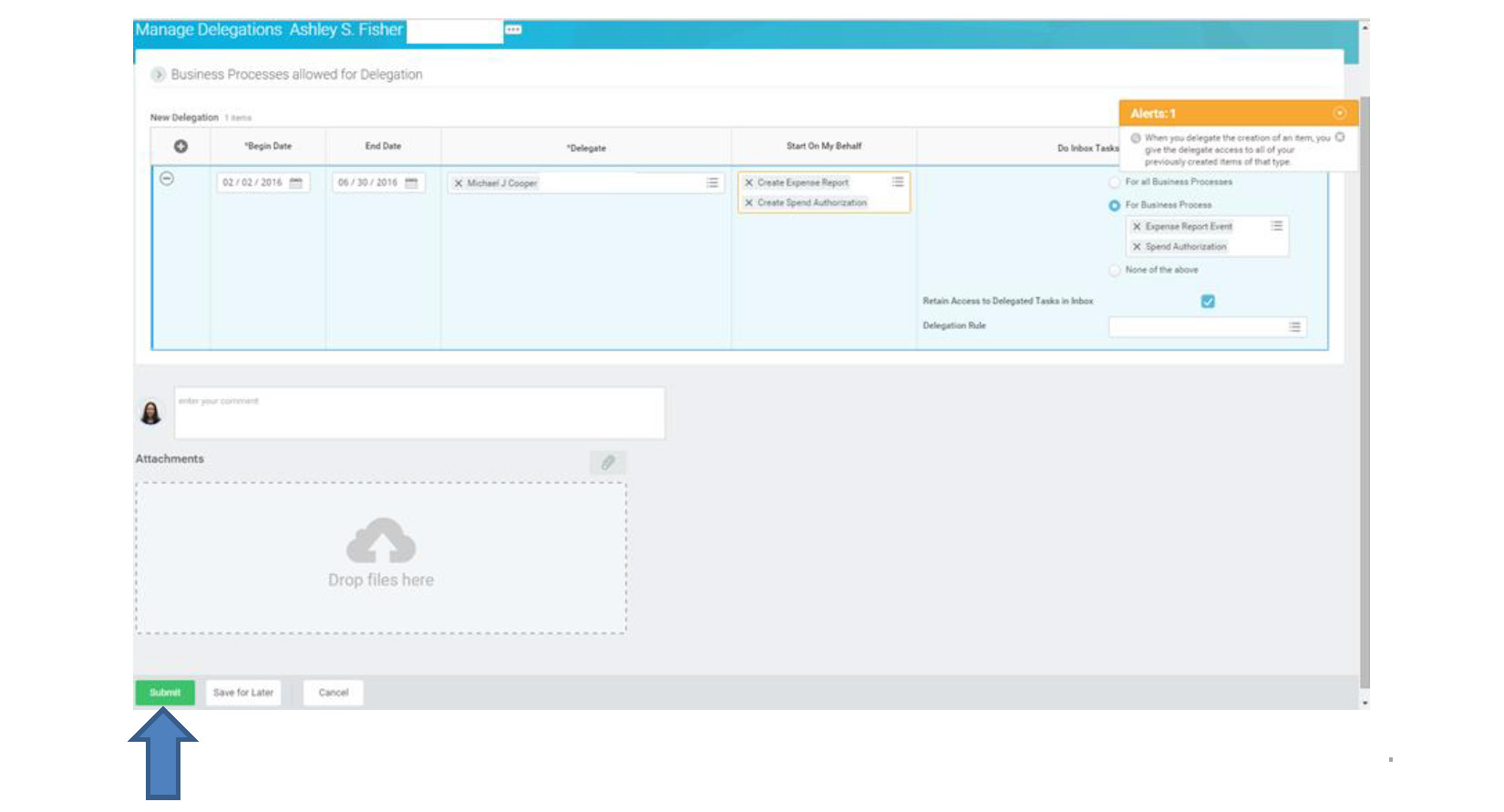
4. When you finish completing the New Delegation section, click Submit for final approval.
Note: No attachments are needed.
5. The next step in the approval process will display.
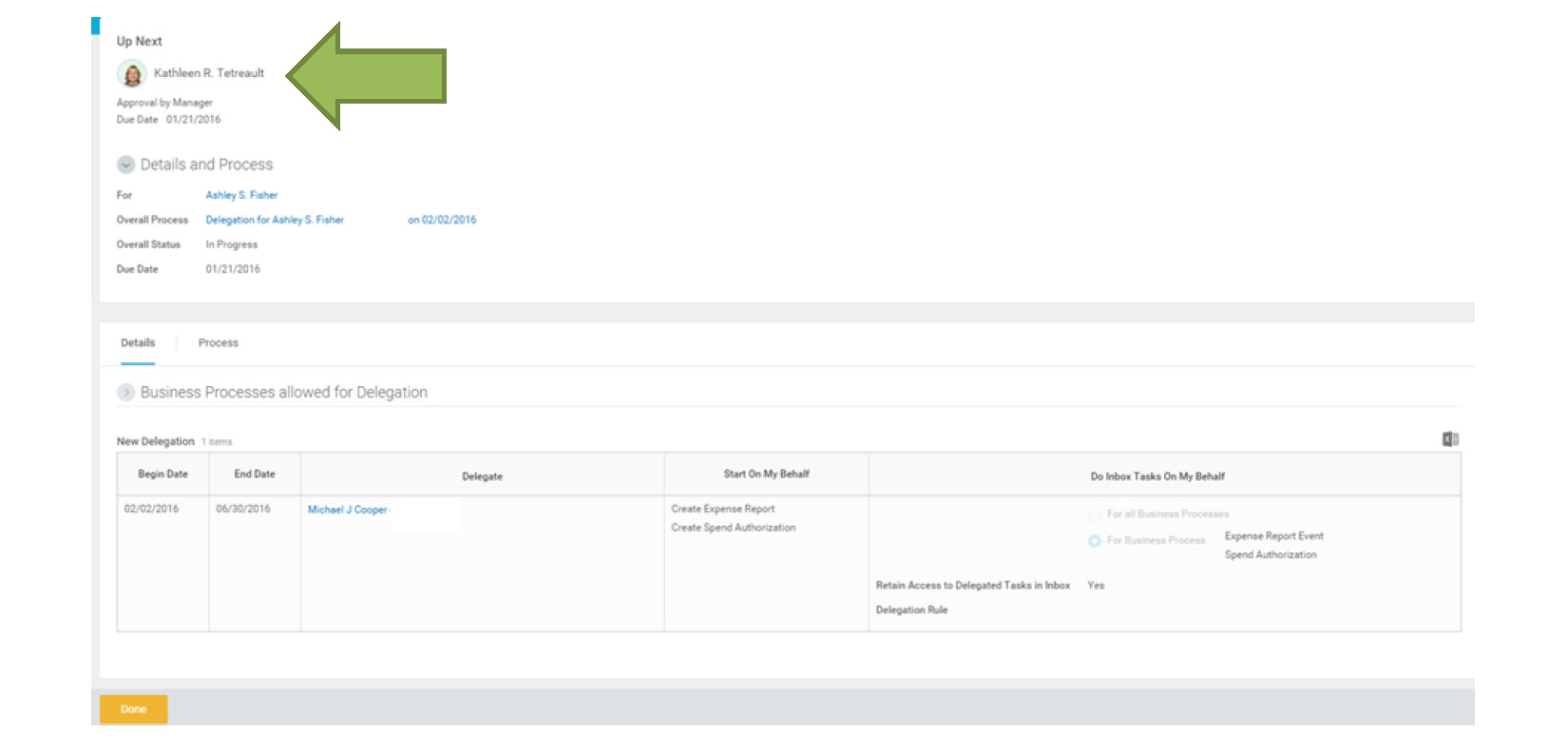
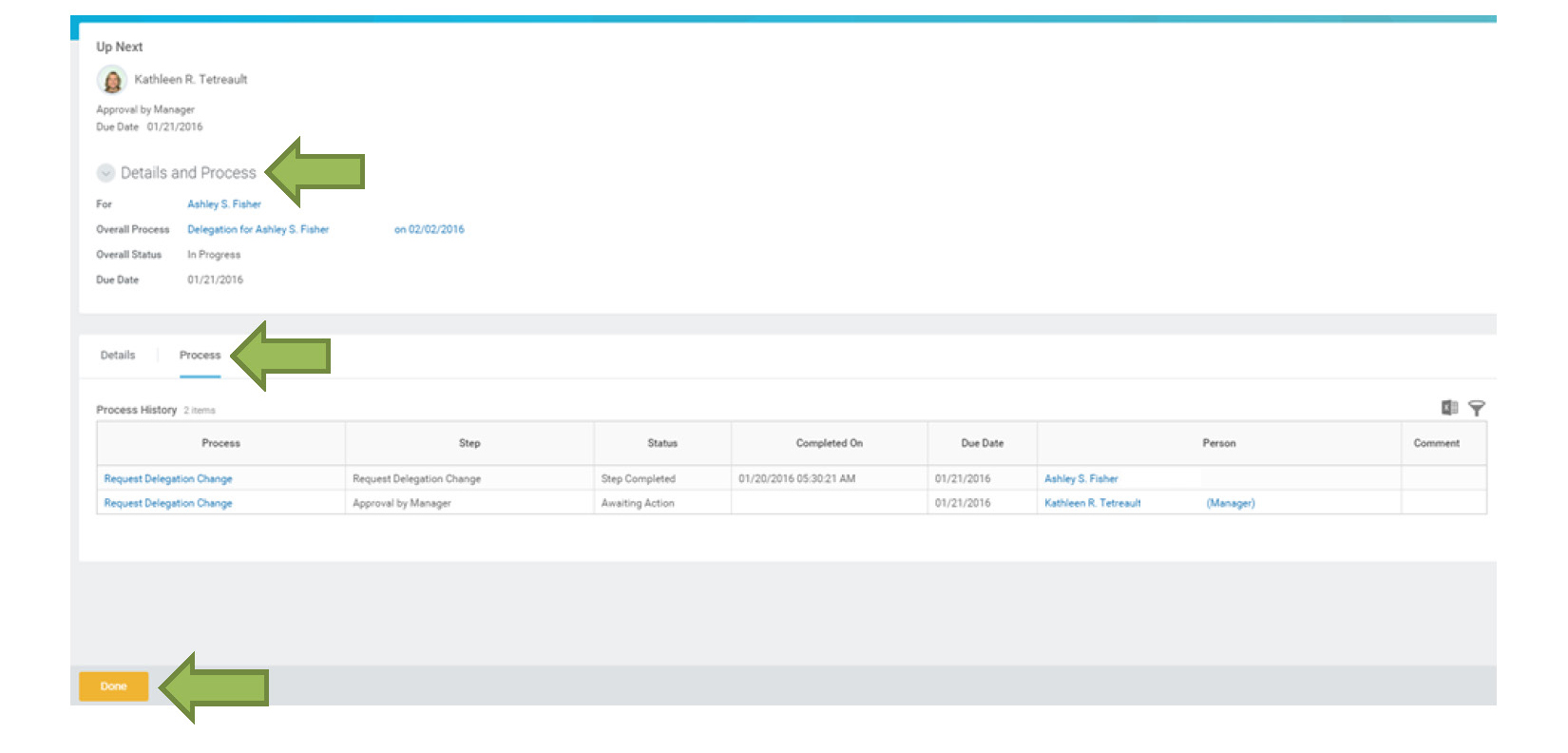
6. You can check the status of the approval process by clicking Details and Process.
7. Click the Process tab to check the status.
8. Click Done when complete.
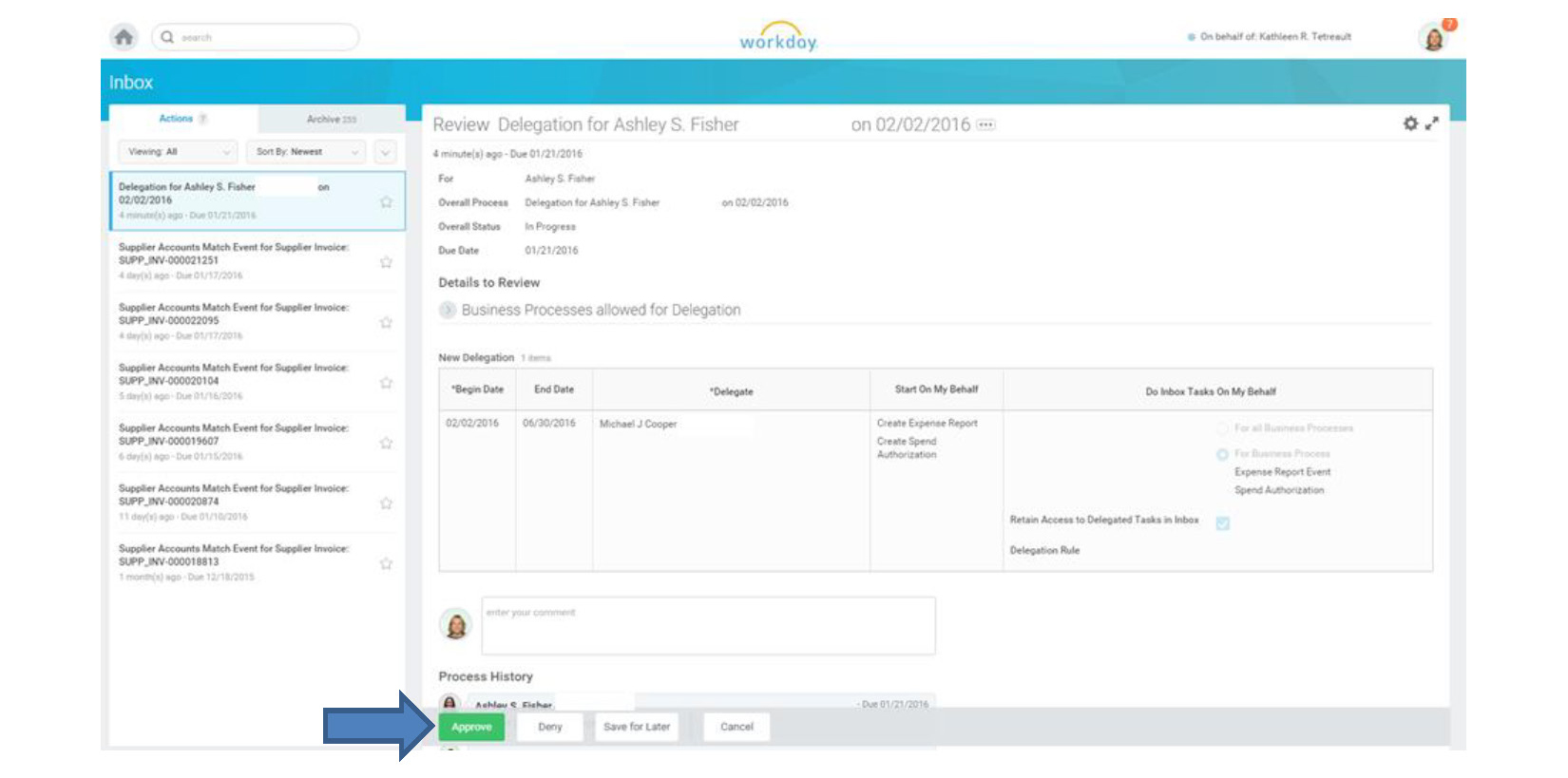
9. The Manager will need to approve the delegation.
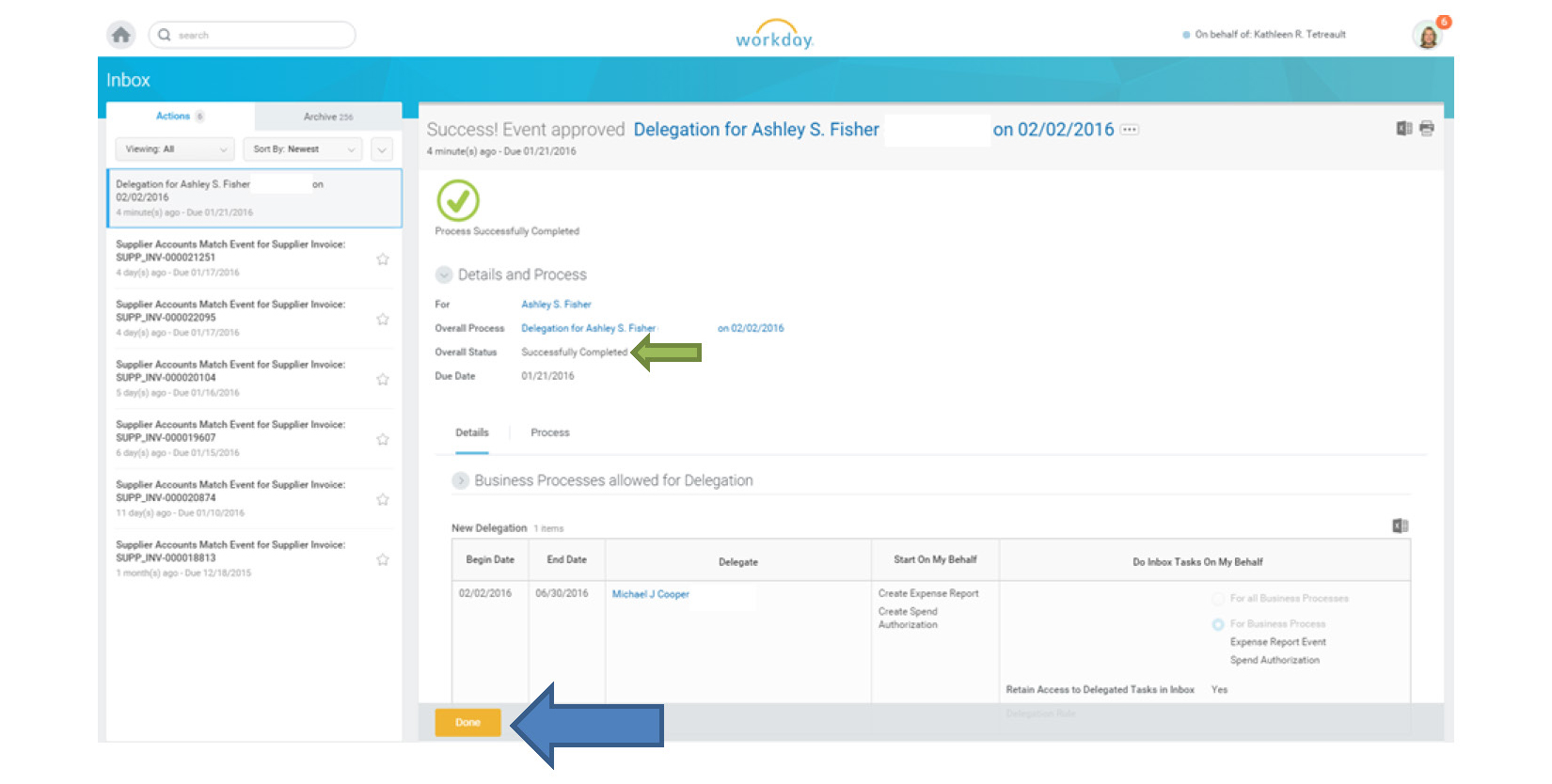
10. Click Approve.
11. The Success page will display.
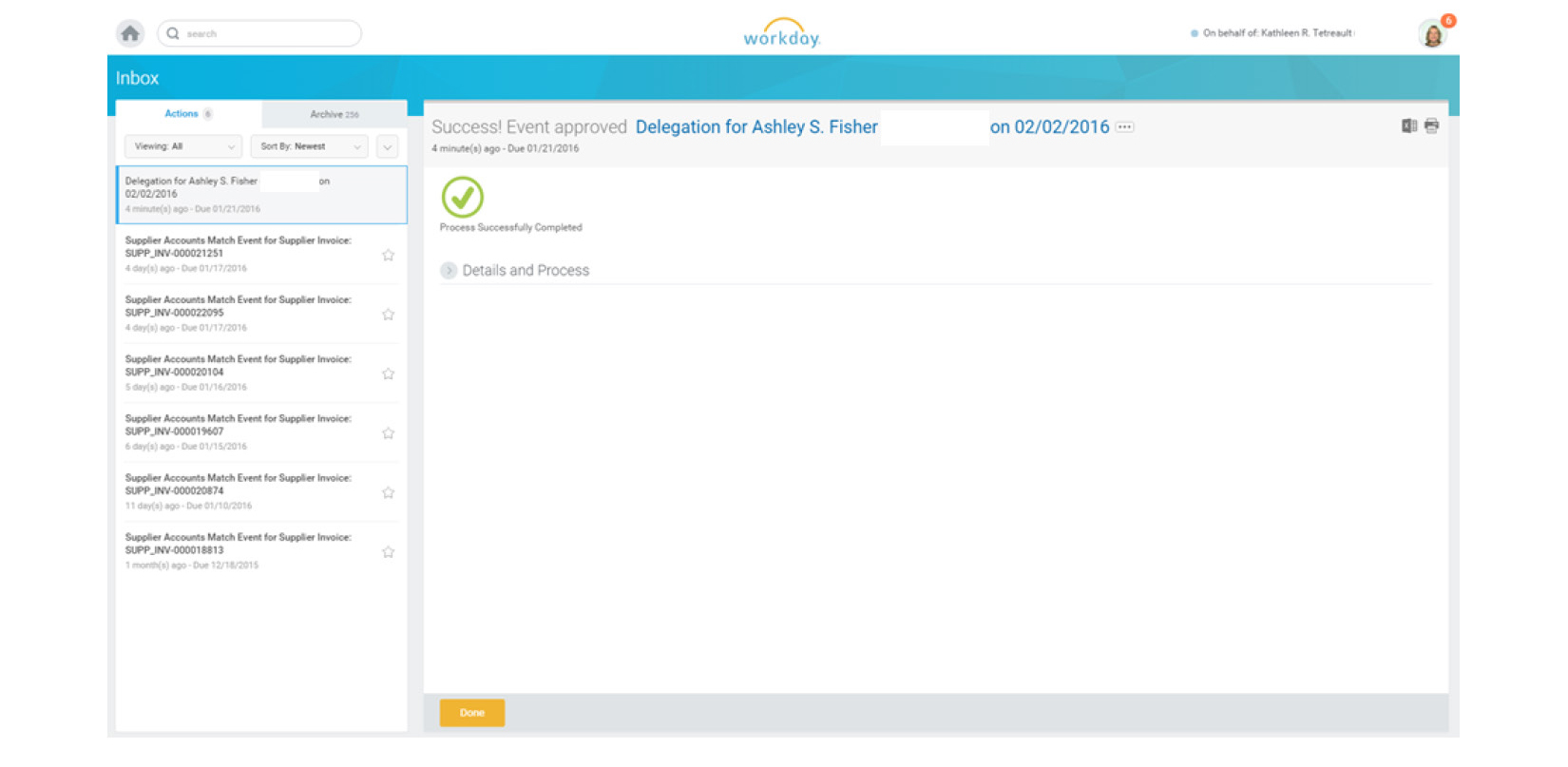
12. The Overall Status will state Successfully Completed.
13. Click Done.
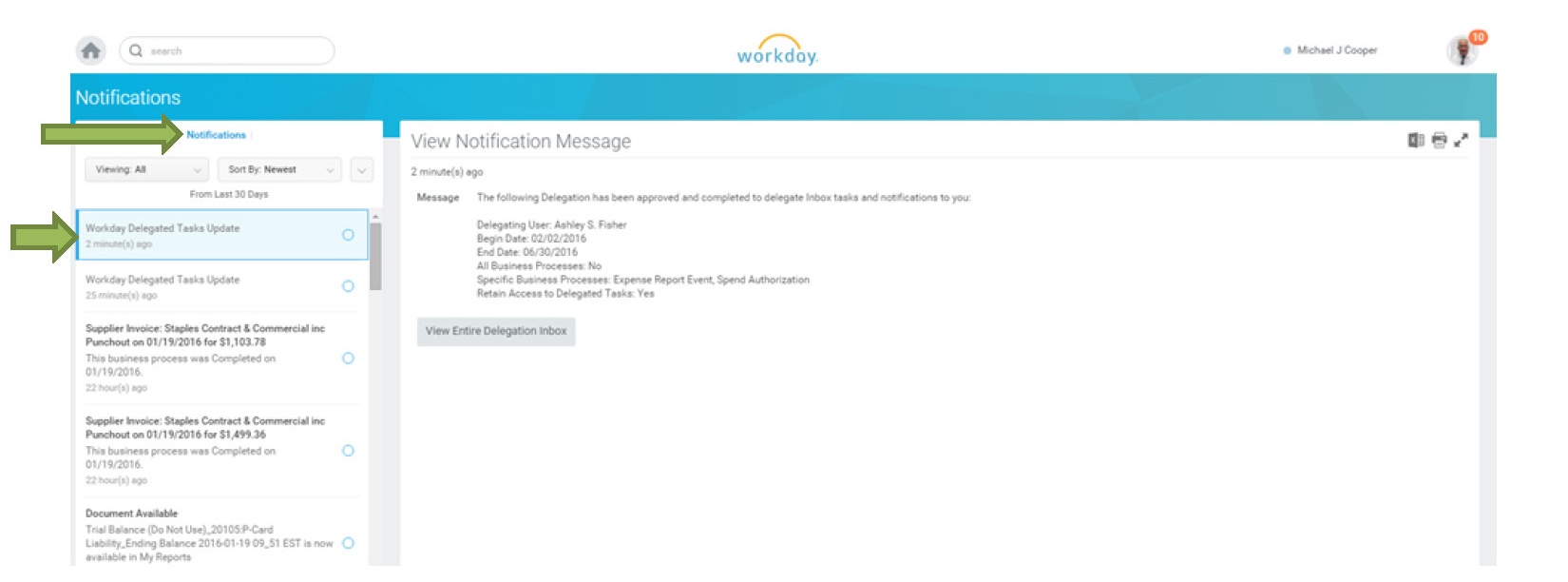
14. The Delegate will receive a Notification.
15. The Delegate is notified about the Delegated Task(s) from the Delegator.
How to Add Equipment and Services to an Existing Research Core
Adding any new piece of equipment or a new service to an existing research core is a big step. Before doing so, submit a request to the core manager with the following information:
- Purchase dates of equipment
- Proposed location of the equipment or service
- Projected uses
- Associated costs for personnel, service or maintenance contracts, and consumables and/or software
The next steps are to collaborate with the core manager on a plan, and schedule an initial meeting with the Florida Atlantic Research Cores Program to discuss your idea and develop a strategy.
The Research Cores Program will require a complete application template and templates for a business plan and rate calculations. The documents must gain approval from both the Research Cores Oversight Committee and the Vice President for Research.
The Florida Atlantic Research Cores then enters the approved documents into the Workday planning module for the Budget and Auxiliary Committee (BAC) for final approval.
With the BAC approval in hand, the core can add the new equipment or service.
Learn more about the Florida Atlantic Research Cores Program.