Lab Docking Stations | Quick Guide
OIT is providing docking stations for student use in the Open and Housing Labs.
Docking stations allow students to add one more screen to their laptops or tablets for smoother studying, productivity, and quick charging. They are compatible with Windows laptops, MacBooks, and iPad Pros with USB-C connectors. See the guides below to get started.
Windows Guide
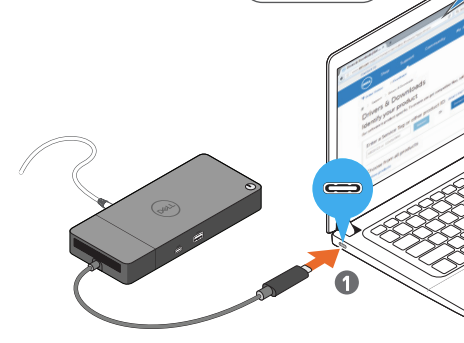
- Connect USB-C cable to laptop.
- Go to
Settings > System > Display
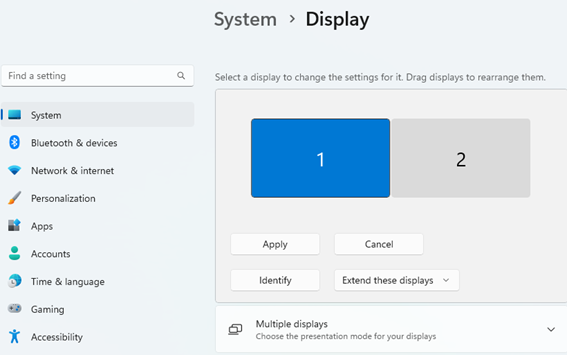
- Select a
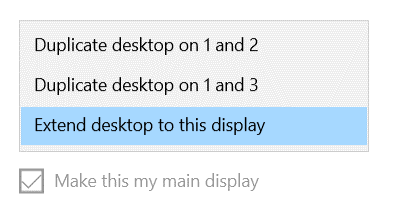
Duplicate
option or
Extend desktop to this display.
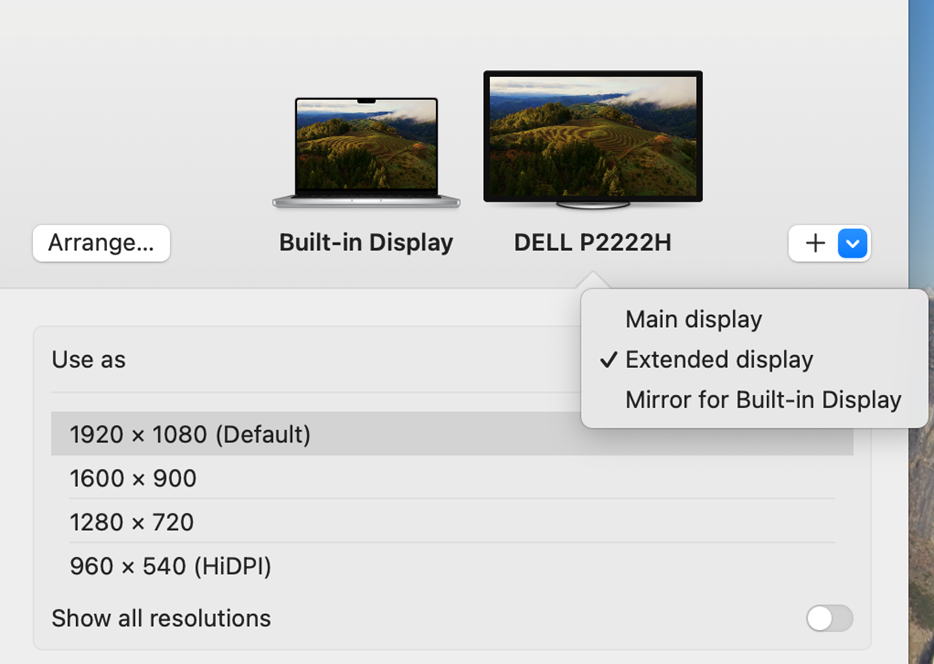
Mac Guide
- Connect USB-C cable to laptop.
- Go to
Settings.

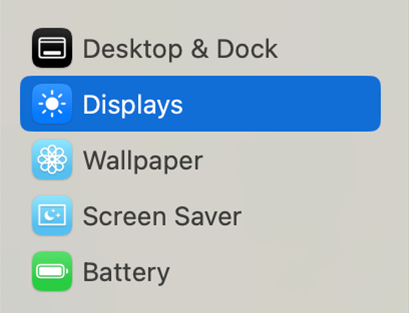
- Select
Displays.
- Select the second monitor and select
Extended Display.
iPad Pro Guide
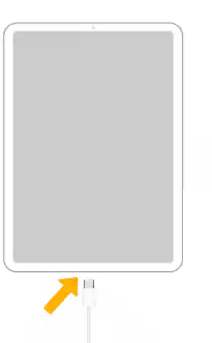
- Connect USB-C cable to iPad.
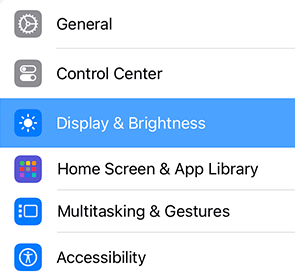
- Go to
Settings.
- Select
Display & Brightness.
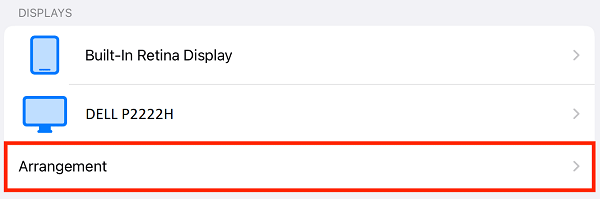
-
Select
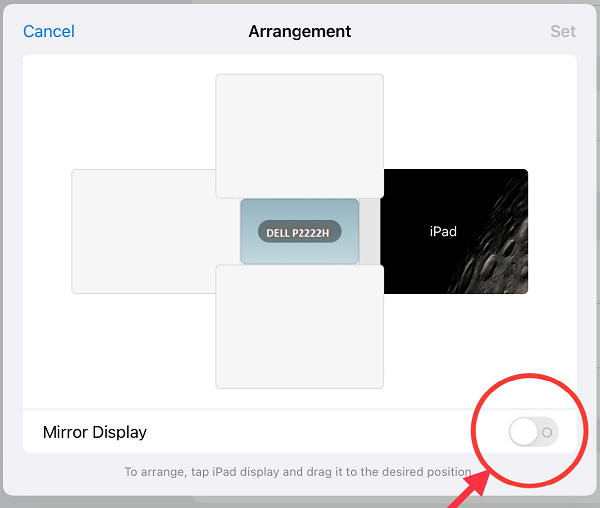
Arrangement
.
-
Toggle
Mirror Display
off. This will extend your screen
-
To arrange, tap on iPad display and drag it to the desired positio
n and tap
Set
on top right to
confirm the arrangement.
